Yes, you can play BGMI on a PC using an Android emulator such as BlueStacks, LDPlayer, or GameLoop, as there is no official Windows version of the game. This guide covers how to download BGMI on PC, choose the best emulator, optimize FPS, configure keyboard controls, and troubleshoot common issues for the best gaming experience.
Table of Contents
What is BGMI PC?
BGMI PC refers to playing Battlegrounds Mobile India (BGMI) on a Windows computer or laptop using an Android emulator. Since KRAFTON has not released an official native PC version of BGMI, players rely on emulators like BlueStacks, LDPlayer, and GameLoop to run the mobile game on a larger screen with keyboard and mouse support.
Playing BGMI on a PC offers several advantages over mobile devices, including smoother gameplay, improved aiming precision, customizable keyboard controls, and better performance on compatible hardware. Many players also prefer the larger display for a more immersive gaming experience, especially during ranked matches and tournaments.
However, it’s important to understand that BGMI PC is not the same as PUBG: BATTLEGROUNDS, which is a separate game built specifically for Windows. BGMI remains a mobile game, and using an emulator simply allows it to run on a PC without changing the game’s core mechanics or progression.
In this guide, you’ll learn everything you need to know about BGMI PC, including how to download and install the game, the best emulators to use, minimum and recommended system requirements, keyboard controls, graphics and FPS optimization, emulator policies, and solutions to common problems.
Key Highlights
- Play BGMI on Windows using an Android emulator.
- No official native PC version of BGMI is available.
- Supports keyboard and mouse controls through emulator key mapping.
- Better graphics and smoother performance on compatible PCs.
- Works with your existing BGMI account and game progress.
Is BGMI Available on PC?
No, BGMI is not officially available as a native PC game. As of 2026, KRAFTON has not released a dedicated Windows version of Battlegrounds Mobile India (BGMI). The game is developed specifically for Android and iOS devices.
However, that doesn’t mean you can’t enjoy BGMI on a computer. Players can run the Android version of the game on Windows PCs and laptops using Android emulators such as BlueStacks, LDPlayer, or GameLoop. These emulators create a virtual Android environment, allowing you to install and play BGMI with a keyboard and mouse.
While emulators provide a PC-like experience, it’s important to understand that BGMI on PC is still the mobile version of the game. Your account, progress, inventory, and in-game purchases remain the same as long as you sign in with your existing BGMI account.
BGMI vs PUBG: BATTLEGROUNDS (PC)
Many players confuse BGMI with PUBG’s PC version, but they are different games.
| Feature | BGMI | PUBG: BATTLEGROUNDS |
|---|---|---|
| Platform | Android & iOS | Windows PC |
| Official PC Version | ❌ No | ✅ Yes |
| Requires Emulator | ✅ Yes | ❌ No |
| Keyboard & Mouse | Via Emulator | Native Support |
| Cross Progression | Same BGMI Mobile Account | Separate PUBG PC Account |
Can You Play BGMI on PC Without an Emulator?
No. Since there is no official Windows version of BGMI, an Android emulator is currently the only way to play the game on a PC or laptop. If KRAFTON releases a native PC version in the future, players will be able to install it directly without relying on third-party emulation software.
Quick Tip: If you’re looking for the best balance of performance and stability, use a trusted emulator like BlueStacks or LDPlayer and enable hardware virtualization (VT-x/AMD-V) for smoother gameplay and higher FPS.
If you’re interested in India’s top female esports talent, check out our guide to the top 10 best female BGMI players in India for their achievements, teams, and gaming careers.
How to Download BGMI on PC
Although BGMI is designed for IOS and Android devices, you can easily play it on a Windows PC or laptop by using an Android emulator. Emulators create a virtual Android environment on your computer, allowing you to download and run BGMI just like you would on a smartphone.
Below are the three most popular methods to download and play BGMI on PC.
Method 1: Download BGMI on PC Using BlueStacks
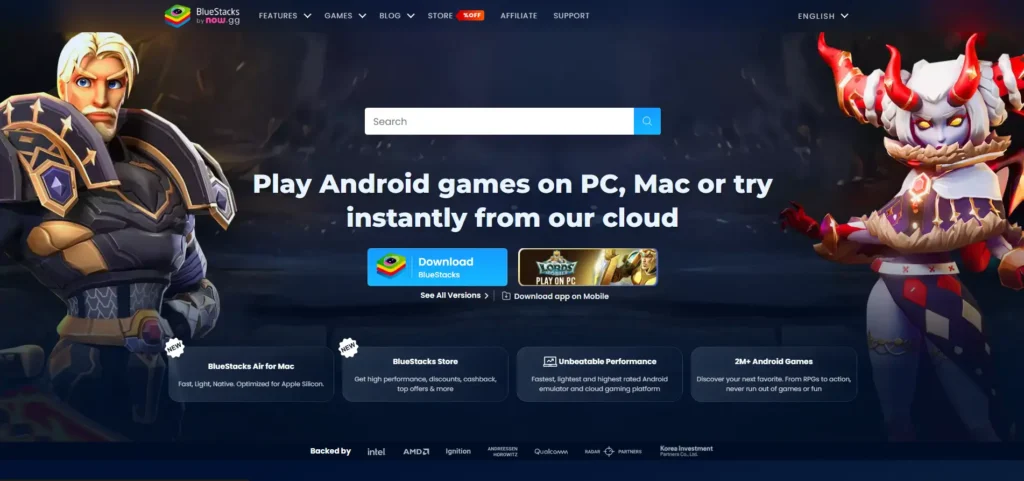
BlueStacks is one of the most popular Android emulators for gaming. It offers excellent performance, customizable controls, and high FPS support, making it a great choice for BGMI players.
Steps to Download BGMI with BlueStacks
- Download and install the latest version of BlueStacks on your PC.
- Launch BlueStacks and sign in with your Google account.
- Open the Google Play Store inside the emulator.
- Search for Battlegrounds Mobile India (BGMI).
- Click Install and wait for the download to complete.
- Open BGMI and sign in with your existing account.
- Configure your keyboard controls and graphics settings before starting your first match.
Best For: Most players looking for a balance between performance and ease of use.
Method 2: Download BGMI on PC Using LDPlayer
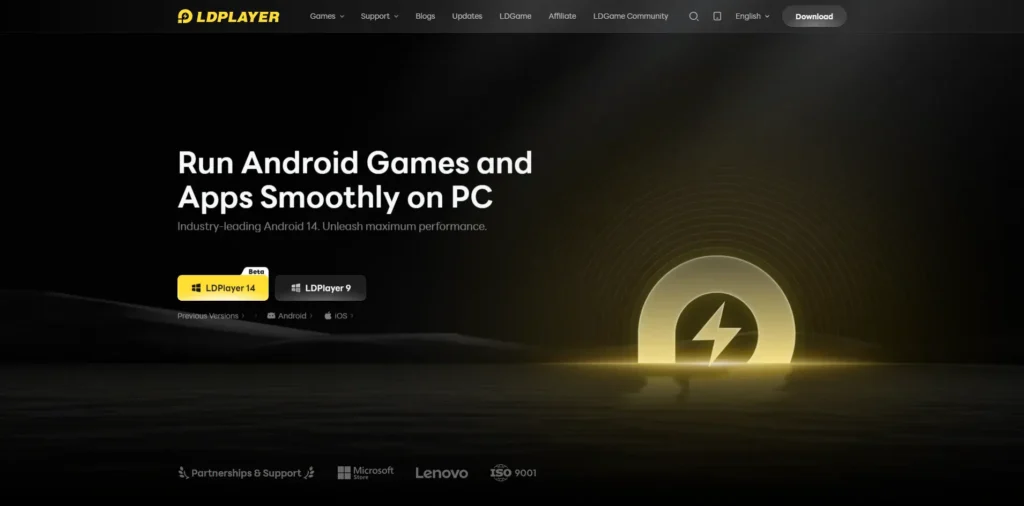
LDPlayer is a lightweight Android emulator known for delivering high FPS and smooth gameplay, especially on mid-range computers.
Steps to Download BGMI with LDPlayer
- Install the latest version of LDPlayer.
- Open the emulator and log in to the Google Play Store.
- Search for BGMI.
- Install the game.
- Launch BGMI after installation.
- Set up keyboard mapping and graphics settings according to your preferences.
Best For: Players who want better performance on budget or mid-range PCs.
Method 3: Download BGMI on PC Using GameLoop
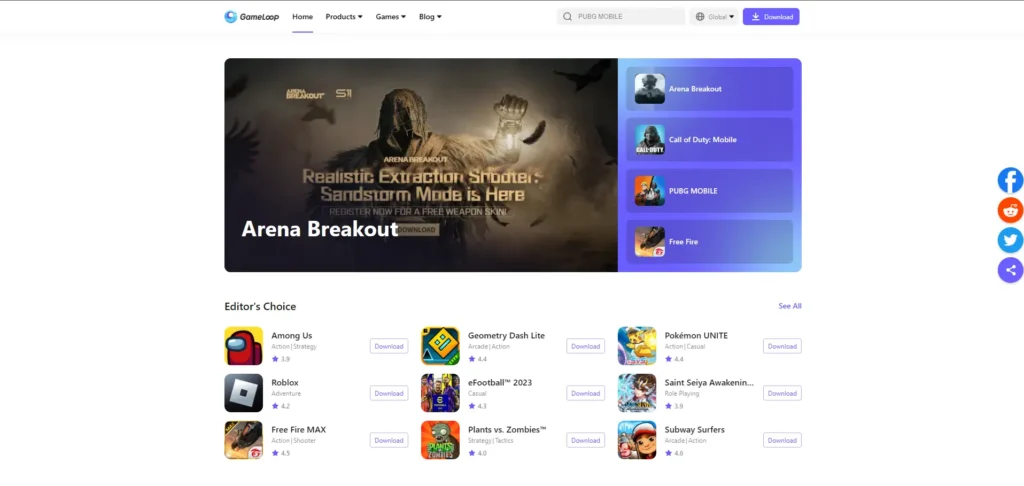
GameLoop is another gaming-focused Android emulator that supports many mobile titles, including BGMI.
Steps to Download BGMI with GameLoop
- Install GameLoop on your Windows PC.
- Sign in with your Google account if required.
- Open the Play Store or Game Center within the emulator.
- Search for Battlegrounds Mobile India.
- Download and install the game.
- Launch BGMI and customize your controls before playing.
Best For: Players who prefer a gaming-focused emulator interface.
Which BGMI Emulator Should You Choose?
| Emulator | Performance | Ease of Use | Best For |
|---|---|---|---|
| BlueStacks | ⭐⭐⭐⭐⭐ | ⭐⭐⭐⭐⭐ | Overall best choice for most players |
| LDPlayer | ⭐⭐⭐⭐⭐ | ⭐⭐⭐⭐☆ | High FPS and low resource usage |
| GameLoop | ⭐⭐⭐⭐☆ | ⭐⭐⭐⭐☆ | Casual gaming and gaming-focused interface |
Before You Start Playing
For the best BGMI PC experience:
- Enable Hardware Virtualization (VT-x/AMD-V) in your BIOS for improved performance.
- Allocate at least 4 GB RAM and 4 CPU cores to your emulator if your system allows.
- Keep your graphics drivers updated.
- Use a stable internet connection to reduce lag and maintain smooth gameplay.
Next: After installing BGMI on your PC, configure the best keyboard controls, graphics settings, and FPS optimization to achieve smoother gameplay and better aiming performance.
If you want to use Jonathan Gaming’s sensitivity settings on a larger screen with keyboard and mouse support, follow our complete BGMI PC guide to optimize your gameplay.
Best BGMI Emulator for PC
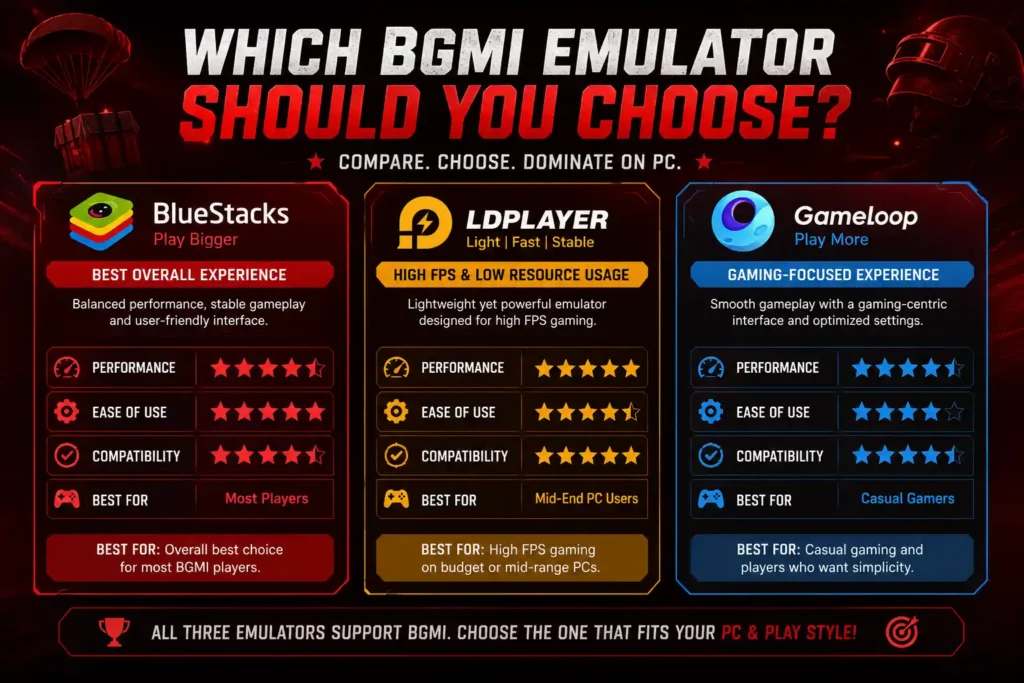
Choosing the right emulator can significantly improve your BGMI PC experience. While all major Android emulators allow you to run Battlegrounds Mobile India on Windows, they differ in terms of performance, system resource usage, stability, and gaming features.
If you have a high-end gaming PC, any of the leading emulators will deliver smooth gameplay. However, for low-end or mid-range systems, selecting the right emulator can help you achieve higher FPS, lower input lag, and better overall performance.
The three most popular emulators for BGMI in 2026 are BlueStacks, LDPlayer, and GameLoop.
BGMI Emulator Comparison
| Emulator | Performance | Ease of Use | Resource Usage | Best For |
|---|---|---|---|---|
| BlueStacks | ⭐⭐⭐⭐⭐ | ⭐⭐⭐⭐⭐ | Medium | Most players looking for the best overall experience |
| LDPlayer | ⭐⭐⭐⭐⭐ | ⭐⭐⭐⭐☆ | Low | High FPS gaming on budget and mid-range PCs |
| GameLoop | ⭐⭐⭐⭐☆ | ⭐⭐⭐⭐☆ | Medium | Casual gamers who prefer a gaming-focused interface |
BlueStacks – Best Overall Emulator
BlueStacks is one of the most trusted Android emulators for PC gaming. It offers excellent stability, frequent updates, advanced keyboard mapping, and support for high frame rates. The interface is beginner-friendly, making it an ideal choice for players who want a hassle-free setup.
Pros
- Easy to install and configure
- Stable performance
- Excellent keyboard and mouse controls
- Supports high FPS gameplay
- Regular software updates
Cons
- Uses more RAM than some lightweight emulators
Recommended For: Beginners, casual players, and competitive gamers looking for the best all-around experience.
LDPlayer – Best for High FPS Performance
LDPlayer is known for its lightweight design and efficient resource management. It delivers excellent performance on low-end and mid-range PCs while maintaining smooth gameplay, making it a popular choice among competitive BGMI players.
Pros
- Lightweight and fast
- Lower CPU and RAM usage
- High FPS support
- Smooth gameplay on mid-range hardware
- Customizable performance settings
Cons
- Some advanced settings may require manual optimization
Recommended For: Players who prioritize maximum FPS and have budget or mid-range PCs.
GameLoop – Gaming-Focused Emulator
GameLoop is a gaming-focused Android emulator designed to run mobile games on Windows. It offers a clean interface, built-in gaming features, and optimized controls, making it suitable for players who want a simple gaming experience.
Pros
- Gaming-focused interface
- Easy installation
- Good keyboard mapping
- Stable gameplay
Cons
- Performance optimization for BGMI may vary depending on updates
- Fewer customization options compared to BlueStacks and LDPlayer
Recommended For: Casual gamers who prefer a straightforward emulator with built-in gaming features.
Which BGMI Emulator Should You Choose?
The best emulator depends on your PC specifications and gaming needs.
- Choose BlueStacks if you want the best balance of stability, features, and ease of use.
- Choose LDPlayer if your goal is achieving the highest possible FPS on a low-end or mid-range PC.
- Choose GameLoop if you prefer a gaming-centric interface and a simple setup process.
For most users, BlueStacks remains the best all-around emulator, while LDPlayer is an excellent choice for players focused on performance and competitive gameplay.
BGMI PC System Requirements
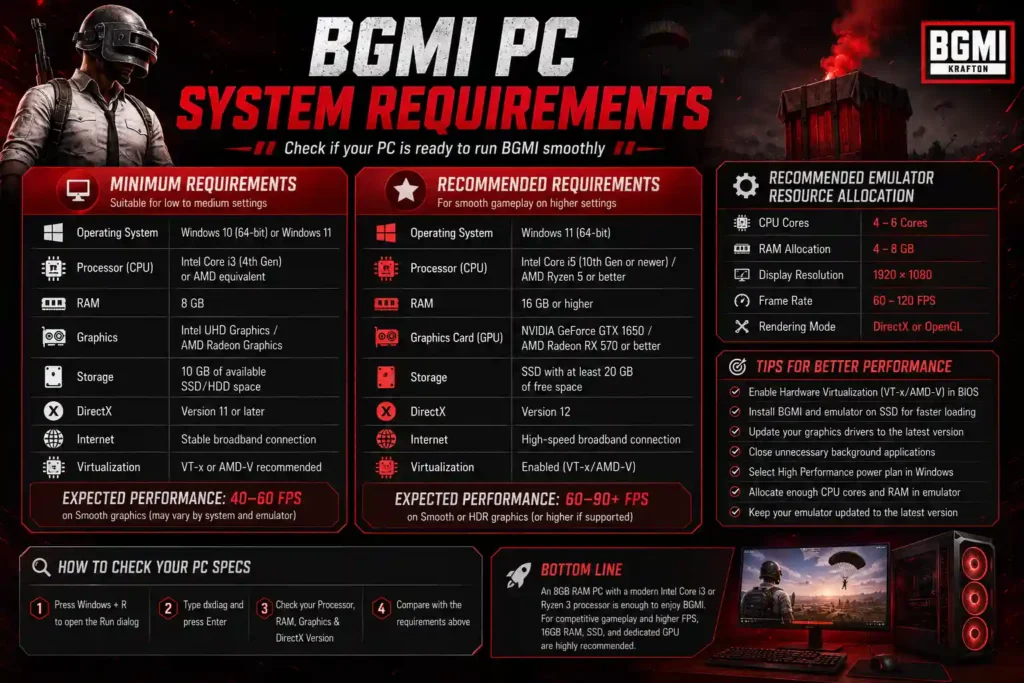
Before downloading BGMI on your PC, make sure your computer meets the minimum hardware requirements to run an Android emulator smoothly. While BGMI itself is a mobile game, its performance depends on both the emulator and your PC’s hardware.
A modern processor, sufficient RAM, and hardware virtualization (VT-x/AMD-V) can significantly improve frame rates, reduce lag, and provide a smoother gaming experience.
Minimum System Requirements
These specifications are suitable for running BGMI at low to medium settings. Performance may vary depending on the emulator you use.
| Component | Minimum Requirement |
|---|---|
| Operating System | Windows 10 (64-bit) or Windows 11 |
| Processor (CPU) | Intel Core i3 (4th Gen) or AMD equivalent |
| RAM | 8 GB |
| Graphics | Intel UHD Graphics / AMD Radeon Graphics |
| Storage | 10 GB of available SSD/HDD space |
| DirectX | Version 11 or later |
| Internet | Stable broadband connection |
| Virtualization | VT-x or AMD-V recommended |
Expected Performance: Around 40–60 FPS on Smooth graphics, depending on the emulator and system configuration.
Recommended System Requirements
For a smoother experience with higher graphics settings and stable frame rates, the following specifications are recommended.
| Component | Recommended Requirement |
|---|---|
| Operating System | Windows 11 (64-bit) |
| Processor (CPU) | Intel Core i5 (10th Gen or newer) / AMD Ryzen 5 or better |
| RAM | 16 GB or higher |
| Graphics Card (GPU) | NVIDIA GeForce GTX 1650 / AMD Radeon RX 570 or better |
| Storage | SSD with at least 20 GB of free space |
| DirectX | Version 12 |
| Internet | High-speed broadband connection |
| Virtualization | Enabled (VT-x/AMD-V) |
Expected Performance: Stable 60–90 FPS (or higher if supported by the emulator and game) with Smooth or HDR graphics on compatible hardware.
Recommended Emulator Resource Allocation
Most Android emulators allow you to customize the amount of CPU and RAM allocated to the virtual device. Setting these correctly can improve BGMI’s performance.
| Setting | Recommended Value |
|---|---|
| CPU Cores | 4–6 Cores |
| RAM Allocation | 4–8 GB |
| Display Resolution | 1920 × 1080 |
| Frame Rate | 60–120 FPS (if supported) |
| Rendering Mode | DirectX or OpenGL (test both for best performance) |
How to Check Your PC Specifications
If you’re unsure whether your computer can run BGMI, checking your hardware takes only a few seconds.
- Press Windows + R to open the Run dialog.
- Type
dxdiagand press Enter. - Review your Processor, Memory (RAM), Graphics, and DirectX Version.
- Compare your specifications with the tables above to determine whether your PC meets the minimum or recommended requirements.
Tips for Better Performance
Even if your PC meets the minimum requirements, these optimizations can improve gameplay:
- Enable Hardware Virtualization (VT-x/AMD-V) in your BIOS.
- Install BGMI and the emulator on an SSD for faster loading times.
- Update your graphics drivers to the latest version.
- Close unnecessary background applications before launching BGMI.
- Select the High Performance power plan in Windows.
- Allocate enough CPU cores and RAM within your emulator settings.
- Keep your emulator updated to the latest stable version.
Bottom Line
An 8 GB RAM PC with a modern Intel Core i3 or Ryzen 3 processor is sufficient to enjoy BGMI through an emulator. However, for competitive gameplay, smoother frame rates, and better graphics, a system with 16 GB RAM, an SSD, and a dedicated graphics card is highly recommended. This combination provides a more stable and responsive gaming experience, especially during intense matches.
If you’re looking for the setup used by one of India’s most popular BGMI creators, check out our detailed Dynamo Gaming profile covering his career, achievements, and gaming journey.
Best BGMI PC Settings
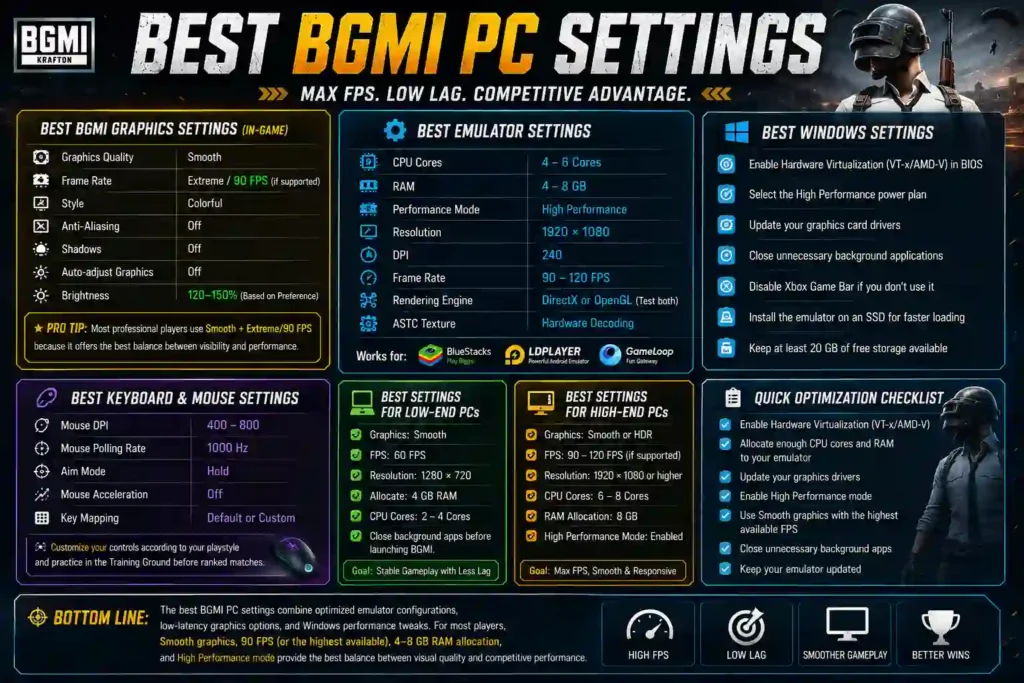
If you want smoother gameplay, lower input lag, and higher FPS, configuring the right settings is just as important as having powerful hardware. The ideal BGMI PC settings depend on your system specifications, but most players achieve the best performance by combining optimized emulator settings with low-latency in-game graphics settings.
Whether you’re using BlueStacks, LDPlayer, or GameLoop, the recommendations below can help improve your gaming experience.
Best BGMI Graphics Settings
For competitive gameplay, prioritize frame rate over visual quality. Lower graphics settings generally provide smoother gameplay and faster response times.
| Setting | Recommended |
|---|---|
| Graphics Quality | Smooth |
| Frame Rate | Extreme / 90 FPS (if supported) |
| Style | Colorful |
| Anti-Aliasing | Off |
| Shadows | Off |
| Auto-adjust Graphics | Off |
| Brightness | 120–150% (Based on Preference) |
Pro Tip: Most professional players use Smooth + Extreme/90 FPS because it offers the best balance between visibility and performance.
Best Emulator Settings
Before launching BGMI, configure your emulator for maximum performance.
| Setting | Recommended |
|---|---|
| CPU Cores | 4–6 Cores |
| RAM | 4–8 GB |
| Performance Mode | High Performance |
| Resolution | 1920 × 1080 |
| DPI | 240 |
| Frame Rate | 90–120 FPS |
| Rendering Engine | DirectX or OpenGL (Test both) |
| ASTC Texture | Hardware Decoding |
Best Windows Settings for BGMI
Optimizing Windows can also improve gameplay.
- Enable Hardware Virtualization (VT-x/AMD-V) in BIOS.
- Select the High Performance power plan.
- Update your graphics card drivers.
- Close unnecessary background applications.
- Disable Xbox Game Bar if you don’t use it.
- Install the emulator on an SSD for faster loading.
- Keep at least 20 GB of free storage available.
Best Keyboard & Mouse Settings
Using the correct keyboard and mouse configuration can improve accuracy and reaction time.
| Setting | Recommended |
|---|---|
| Mouse DPI | 400–800 |
| Mouse Polling Rate | 1000 Hz |
| Aim Mode | Hold |
| Mouse Acceleration | Off |
| Key Mapping | Default or Custom |
Customize your controls according to your playstyle and practice in the Training Ground before playing ranked matches.
Best Settings for Low-End PCs
If your computer has limited hardware, use these settings for smoother gameplay.
- Graphics: Smooth
- FPS: 60 FPS
- Resolution: 1280 × 720
- Allocate 4 GB RAM
- Allocate 2–4 CPU cores
- Close background applications before launching BGMI.
These settings help reduce lag while maintaining stable performance.
Best Settings for High-End PCs
Players with gaming PCs can take advantage of more powerful hardware.
- Graphics: Smooth or HDR
- FPS: 90–120 FPS (if supported)
- Resolution: 1920 × 1080 or higher
- CPU Allocation: 6–8 Cores
- RAM Allocation: 8 GB
- High Performance Mode: Enabled
This setup delivers smoother gameplay, quicker loading times, and improved responsiveness.
Quick Optimization Checklist
Before starting a match, make sure you:
- ✅ Enable Hardware Virtualization (VT-x/AMD-V)
- ✅ Allocate enough CPU cores and RAM to your emulator
- ✅ Update your graphics drivers
- ✅ Enable High Performance mode
- ✅ Use Smooth graphics with the highest available FPS
- ✅ Close unnecessary background apps
- ✅ Keep your emulator updated
Bottom Line
The best BGMI PC settings combine optimized emulator configurations, low-latency graphics options, and Windows performance tweaks. For most players, Smooth graphics, 90 FPS (or the highest available frame rate), 4–8 GB RAM allocation, and High Performance mode provide the best balance between visual quality and competitive performance.
BGMI Keyboard Controls
One of the biggest advantages of playing BGMI on PC is the ability to use a keyboard and mouse instead of touch controls. Android emulators automatically map most in-game actions to keyboard keys, making movement, aiming, looting, and vehicle control much faster and more precise.
Whether you’re a casual player or pushing ranks in competitive matches, customizing your key layout can improve reaction time and overall gameplay.
Default BGMI Keyboard Controls
Most emulators, including BlueStacks, LDPlayer, and GameLoop, use a similar default key mapping.
| Action | Default Key |
|---|---|
| Move Forward | W |
| Move Backward | S |
| Move Left | A |
| Move Right | D |
| Jump | Space |
| Crouch | C |
| Prone | Z |
| Sprint | Shift |
| Fire | Left Mouse Button |
| Aim / ADS | Right Mouse Button |
| Reload | R |
| Open Inventory | Tab |
| Open Map | M |
| Pick Up / Interact | F |
| Open Door | F |
| Peek Left | Q |
| Peek Right | E |
| Lean & Fire | Q / E + Left Click |
| Throw Grenade | G |
| Switch Weapon | 1 / 2 |
| Melee Weapon | 3 |
| Healing Items | 4 / 5 |
| Voice Chat | T |
| Push to Talk | Y |
| Auto Run | = |
| Free Look | Alt |
Vehicle Controls
Driving vehicles becomes much easier with a keyboard.
| Action | Default Key |
|---|---|
| Accelerate | W |
| Brake / Reverse | S |
| Turn Left | A |
| Turn Right | D |
| Exit Vehicle | F |
| Change Seat | Ctrl + 1–4 |
| Horn | H |
| Boost | Shift |
Mouse Controls
Your mouse is responsible for aiming, shooting, and camera movement.
| Action | Mouse Control |
|---|---|
| Aim Camera | Move Mouse |
| Fire | Left Click |
| Aim Down Sight (ADS) | Right Click |
| Change View | Mouse Wheel |
| Zoom Scope | Mouse Wheel |
| Free Look | Hold Alt |
How to Customize Keyboard Controls
All major emulators allow you to edit key mappings based on your playstyle.
Steps to Change Controls
- Launch your emulator and open BGMI.
- Open the emulator’s Key Mapping or Game Controls menu.
- Click on the action you want to modify.
- Press your preferred keyboard key or mouse button.
- Save the new layout.
- Test your controls in the Training Ground before entering ranked matches.
Tip: Save multiple control profiles if your emulator supports them. This makes it easy to switch between casual and competitive layouts.
Best Keyboard Layout for Competitive Players
Competitive players generally prefer quick access to movement, leaning, healing, and weapon switching.
| Action | Recommended Key |
|---|---|
| Movement | W A S D |
| Jump | Space |
| Crouch | C |
| Prone | Z |
| Peek Left | Q |
| Peek Right | E |
| Fire | Left Mouse Button |
| ADS | Right Mouse Button |
| Reload | R |
| Loot | F |
| Inventory | Tab |
| Map | M |
This layout keeps your fingers close to the movement keys while allowing quick access to essential combat actions.
Tips for Better Keyboard & Mouse Performance
To improve accuracy and responsiveness while playing BGMI on PC:
- Enable Raw Mouse Input if your emulator supports it.
- Turn Mouse Acceleration off in Windows.
- Use a gaming mouse with adjustable DPI (400–800 DPI is a common starting range).
- Lock your mouse cursor during gameplay to prevent accidental clicks outside the game.
- Practice your controls in the Training Ground to build muscle memory.
- Customize key bindings based on your comfort instead of copying another player’s layout.
Common Keyboard Control Issues
Keyboard Not Working
- Restart the emulator.
- Reset the default key mapping.
- Update the emulator to the latest version.
Mouse Cursor Not Locked
- Press the emulator’s mouse lock shortcut (varies by emulator).
- Check that game controls are enabled.
Wrong Key Mapping
- Open the emulator’s key mapping editor.
- Restore the default layout or manually remap the affected keys.
Bottom Line
Using a keyboard and mouse gives BGMI PC players greater precision, faster reactions, and improved control compared to touch input. While the default key mapping works well for most players, taking a few minutes to customize your controls can make your gameplay more comfortable and competitive.
Many of the performance improvements planned for PUBG Console, such as smoother gameplay and higher frame rates, are also priorities for players looking to optimize their BGMI PC experience.
BGMI Keyboard Controls
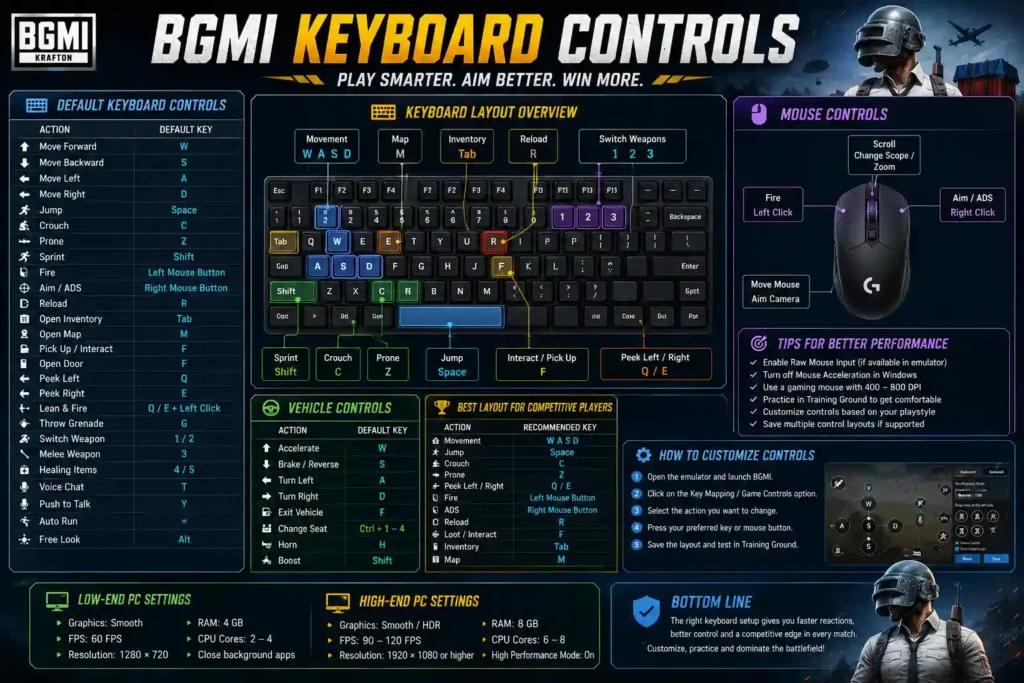
One of the biggest advantages of playing BGMI on PC is the ability to use a keyboard and mouse instead of touch controls. Android emulators automatically map most in-game actions to keyboard keys, making movement, aiming, looting, and vehicle control much faster and more precise.
Whether you’re a casual player or pushing ranks in competitive matches, customizing your key layout can improve reaction time and overall gameplay.
Default BGMI Keyboard Controls
Most emulators, including BlueStacks, LDPlayer, and GameLoop, use a similar default key mapping.
| Action | Default Key |
|---|---|
| Move Forward | W |
| Move Backward | S |
| Move Left | A |
| Move Right | D |
| Jump | Space |
| Crouch | C |
| Prone | Z |
| Sprint | Shift |
| Fire | Left Mouse Button |
| Aim / ADS | Right Mouse Button |
| Reload | R |
| Open Inventory | Tab |
| Open Map | M |
| Pick Up / Interact | F |
| Open Door | F |
| Peek Left | Q |
| Peek Right | E |
| Lean & Fire | Q / E + Left Click |
| Throw Grenade | G |
| Switch Weapon | 1 / 2 |
| Melee Weapon | 3 |
| Healing Items | 4 / 5 |
| Voice Chat | T |
| Push to Talk | Y |
| Auto Run | = |
| Free Look | Alt |
Vehicle Controls
Driving vehicles becomes much easier with a keyboard.
| Action | Default Key |
|---|---|
| Accelerate | W |
| Brake / Reverse | S |
| Turn Left | A |
| Turn Right | D |
| Exit Vehicle | F |
| Change Seat | Ctrl + 1–4 |
| Horn | H |
| Boost | Shift |
Mouse Controls
Your mouse is responsible for aiming, shooting, and camera movement.
| Action | Mouse Control |
|---|---|
| Aim Camera | Move Mouse |
| Fire | Left Click |
| Aim Down Sight (ADS) | Right Click |
| Change View | Mouse Wheel |
| Zoom Scope | Mouse Wheel |
| Free Look | Hold Alt |
How to Customize Keyboard Controls
All major emulators allow you to edit key mappings based on your playstyle.
Steps to Change Controls
- Launch your emulator and open BGMI.
- Open the emulator’s Key Mapping or Game Controls menu.
- Click on the action you want to modify.
- Press your preferred keyboard key or mouse button.
- Save the new layout.
- Test your controls in the Training Ground before entering ranked matches.
Tip: Save multiple control profiles if your emulator supports them. This makes it easy to switch between casual and competitive layouts.
Best Keyboard Layout for Competitive Players
Competitive players generally prefer quick access to movement, leaning, healing, and weapon switching.
| Action | Recommended Key |
|---|---|
| Movement | W A S D |
| Jump | Space |
| Crouch | C |
| Prone | Z |
| Peek Left | Q |
| Peek Right | E |
| Fire | Left Mouse Button |
| ADS | Right Mouse Button |
| Reload | R |
| Loot | F |
| Inventory | Tab |
| Map | M |
This layout keeps your fingers close to the movement keys while allowing quick access to essential combat actions.
Tips for Better Keyboard & Mouse Performance
To improve accuracy and responsiveness while playing BGMI on PC:
- Enable Raw Mouse Input if your emulator supports it.
- Turn Mouse Acceleration off in Windows.
- Use a gaming mouse with adjustable DPI (400–800 DPI is a common starting range).
- Lock your mouse cursor during gameplay to prevent accidental clicks outside the game.
- Practice your controls in the Training Ground to build muscle memory.
- Customize key bindings based on your comfort instead of copying another player’s layout.
Common Keyboard Control Issues
Keyboard Not Working
- Restart the emulator.
- Reset the default key mapping.
- Update the emulator to the latest version.
Mouse Cursor Not Locked
- Press the emulator’s mouse lock shortcut (varies by emulator).
- Check that game controls are enabled.
Wrong Key Mapping
- Open the emulator’s key mapping editor.
- Restore the default layout or manually remap the affected keys.
Bottom Line
Using a keyboard and mouse gives BGMI PC players greater precision, faster reactions, and improved control compared to touch input. While the default key mapping works well for most players, taking a few minutes to customize your controls can make your gameplay more comfortable and competitive.
If you’re waiting for higher frame rates, read our BGMI 165 FPS release date guide to learn about the latest updates, supported devices, and expected rollout.
How to Increase FPS in BGMI PC
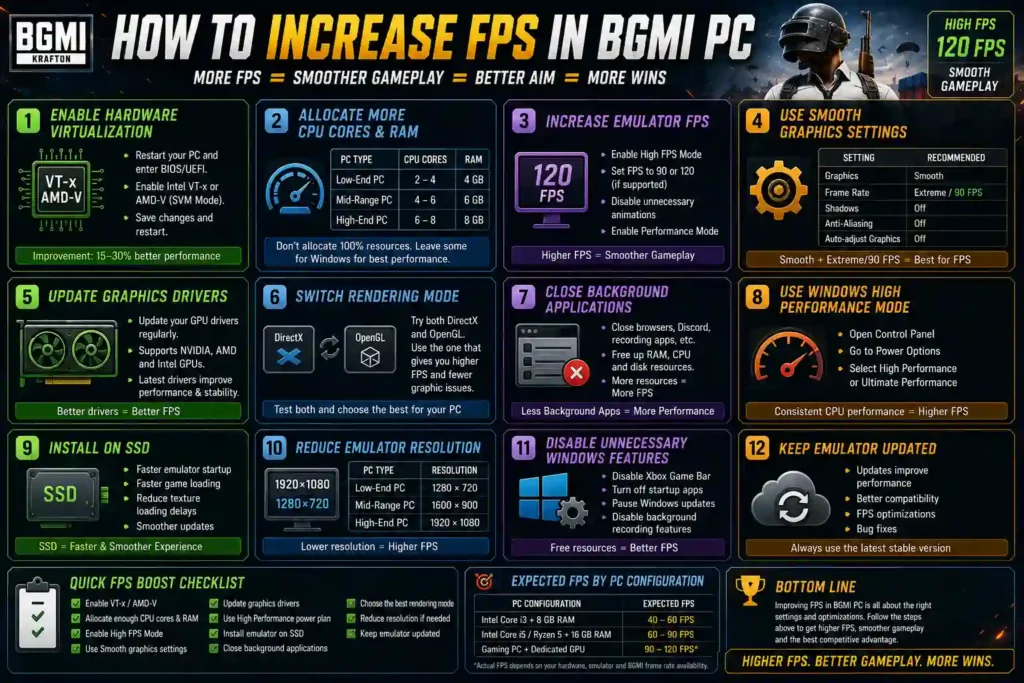
A high frame rate (FPS) is essential for smooth gameplay, faster reaction times, and better aiming in BGMI. If you’re experiencing lag, frame drops, or stuttering while playing on a PC, optimizing both your emulator and Windows settings can significantly improve performance.
Below are the most effective ways to increase FPS in BGMI on PC.
1. Enable Hardware Virtualization (VT-x / AMD-V)
Hardware Virtualization allows your emulator to use your processor more efficiently, resulting in smoother gameplay and better overall performance.
How to Enable Virtualization
- Restart your PC and enter the BIOS/UEFI settings.
- Find Intel Virtualization Technology (VT-x) or AMD-V/SVM Mode.
- Enable the feature.
- Save the changes and restart your computer.
Expected Improvement: 15–30% better emulator performance on supported systems.
2. Allocate More CPU Cores & RAM
Android emulators let you allocate system resources manually.
Recommended Settings
| PC Type | CPU Cores | RAM |
|---|---|---|
| Low-End PC | 2–4 Cores | 4 GB |
| Mid-Range PC | 4–6 Cores | 6 GB |
| High-End PC | 6–8 Cores | 8 GB |
Avoid allocating all available resources, as Windows still needs memory and CPU power to run background processes.
3. Increase Emulator FPS
Most emulators support higher frame rates.
Recommended settings:
- Enable High FPS Mode
- Set FPS to 90 or 120 (if supported)
- Disable unnecessary animations
- Enable Performance Mode
4. Use Smooth GraphicsHigher graphics settings look better but reduce FPS.
For competitive gameplay, use:
| Setting | Recommended |
|---|---|
| Graphics | Smooth |
| Frame Rate | Extreme / 90 FPS |
| Shadows | Off |
| Anti-Aliasing | Off |
| Auto-adjust Graphics | Off |
These settings prioritize performance over visual quality.
5. Update Graphics Drivers
Outdated GPU drivers can reduce performance and cause crashes.
Update drivers regularly if you’re using:
- NVIDIA GeForce
- AMD Radeon
- Intel Arc or Intel UHD Graphics
Installing the latest drivers often improves compatibility and stability.
6. Switch Rendering Mode
Most emulators allow you to choose between rendering engines.
Try both:
- DirectX
- OpenGL
Select the one that delivers the highest FPS and the fewest graphical issues on your system.
7. Close Background Applications
Programs running in the background consume CPU, RAM, and disk resources.
Before launching BGMI, close unnecessary applications such as:
- Web browsers with multiple tabs
- Discord screen sharing (if not needed)
- Video editing software
- Windows updates running in the background
- Other Android emulators
This frees up system resources for better gaming performance.
8. Use Windows High Performance Mode
Windows may limit CPU performance when using balanced or power-saving plans.
To enable High Performance:
- Open Control Panel.
- Go to Power Options.
- Select High Performance or Ultimate Performance (if available).
This helps maintain consistent CPU speeds during gameplay.
9. Install BGMI & Emulator on an SSD
Solid State Drives (SSDs) load games much faster than traditional hard drives.
Benefits include:
- Faster emulator startup
- Quicker game loading
- Reduced texture loading delays
- Smoother updates
10. Reduce Emulator Resolution
If your PC struggles to maintain stable FPS, lowering the emulator’s resolution can help.
| PC Type | Recommended Resolution |
|---|---|
| Low-End | 1280 × 720 |
| Mid-Range | 1600 × 900 |
| High-End | 1920 × 1080 |
Lower resolutions reduce GPU workload and improve frame rates.
11. Disable Unnecessary Windows Features
Turning off unused features can free additional system resources.
Recommended:
- Disable Xbox Game Bar (if unused)
- Turn off unnecessary startup apps
- Pause Windows updates during gameplay
- Disable background recording features
12. Keep Your Emulator Updated
Emulator developers regularly release updates that improve:
- Performance
- Stability
- FPS optimization
- Compatibility with the latest BGMI updates
Always use the latest stable version of your preferred emulator.
Quick FPS Boost Checklist
Before launching BGMI, make sure you:
- ✅ Enable Hardware Virtualization (VT-x/AMD-V)
- ✅ Allocate 4–8 GB RAM to the emulator
- ✅ Allocate the appropriate number of CPU cores
- ✅ Enable High FPS Mode
- ✅ Use Smooth graphics settings
- ✅ Update graphics drivers
- ✅ Select High Performance mode in Windows
- ✅ Install the emulator on an SSD
- ✅ Close unnecessary background applications
- ✅ Keep your emulator updated
Expected FPS by PC Configuration
| PC Configuration | Expected FPS |
|---|---|
| Intel Core i3 + 8 GB RAM | 40–60 FPS |
| Intel Core i5 / Ryzen 5 + 16 GB RAM | 60–90 FPS |
| Gaming PC + Dedicated GPU | 90–120 FPS* |
*Actual frame rates depend on your hardware, emulator capabilities, and the frame-rate options currently available in BGMI.
Bottom Line
Improving FPS in BGMI PC doesn’t always require upgrading your hardware. Enabling virtualization, allocating the right amount of CPU and RAM, using Smooth graphics, updating your GPU drivers, and optimizing Windows settings can dramatically improve gameplay. For the best competitive experience, aim for a stable frame rate rather than the highest graphics quality.
Common BGMI PC Problems & Fixes
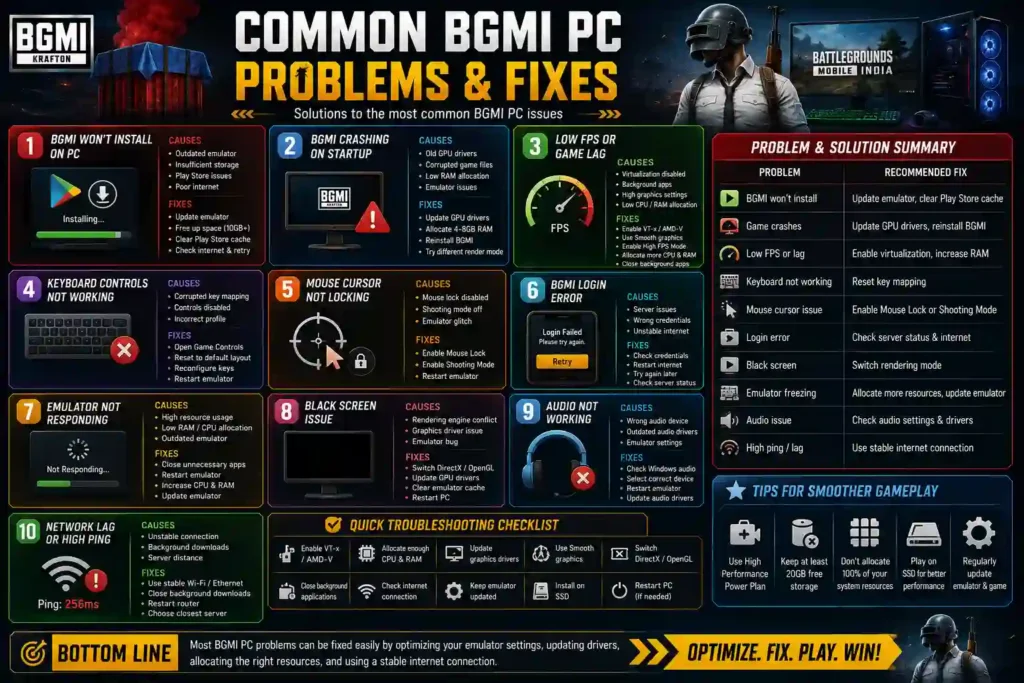
Even with a powerful PC, you may occasionally encounter issues while playing BGMI through an Android emulator. Most problems are caused by incorrect emulator settings, outdated drivers, insufficient system resources, or network connectivity issues.
Below are the most common BGMI PC problems and their solutions.
BGMI Won’t Install on PC
If BGMI fails to install through your emulator, the issue is usually related to the Play Store, storage space, or an outdated emulator version.
Possible Causes
- Outdated emulator version
- Insufficient storage space
- Google Play Store issues
- Poor internet connection
How to Fix It
- Update your emulator to the latest version.
- Ensure you have at least 10 GB of free storage.
- Clear the Google Play Store cache inside the emulator.
- Restart the emulator and try again.
- Check your internet connection.
BGMI Crashing on Startup
If BGMI crashes immediately after launching, it could be due to incompatible emulator settings or outdated graphics drivers.
Possible Causes
- Old GPU drivers
- Corrupted game files
- Low RAM allocation
- Emulator compatibility issues
How to Fix It
- Update your graphics drivers.
- Allocate 4–8 GB RAM to the emulator.
- Restart your PC.
- Reinstall BGMI if the game files are corrupted.
- Switch between DirectX and OpenGL rendering modes.
Low FPS or Game Lag
Low frame rates are one of the most common issues for BGMI PC players.
Possible Causes
- Hardware Virtualization disabled
- Too many background applications
- High graphics settings
- Low CPU or RAM allocation
How to Fix It
- Enable VT-x/AMD-V in BIOS.
- Set Graphics to Smooth.
- Enable High FPS Mode in the emulator.
- Allocate more CPU cores and RAM.
- Close unnecessary background applications.
- Install the emulator on an SSD.
Keyboard Controls Not Working
Sometimes keyboard mapping may stop working after an emulator update or game update.
Possible Causes
- Corrupted key mapping
- Emulator control settings disabled
- Incorrect control profile
How to Fix It
- Open the emulator’s Game Controls menu.
- Reset the default keyboard layout.
- Reconfigure your custom key mapping.
- Restart the emulator.
Mouse Cursor Not Locking
If the mouse cursor moves outside the game window, aiming becomes difficult.
How to Fix It
- Press the emulator’s Mouse Lock shortcut.
- Enable Smart Controls or Shooting Mode.
- Restart the emulator if the issue persists.
BGMI Login Error
Some players may experience login problems after updating the game or switching emulators.
Possible Causes
- Server issues
- Incorrect account credentials
- Unstable internet connection
How to Fix It
- Verify your login credentials.
- Restart your internet connection.
- Try logging in again after a few minutes.
- Check if BGMI servers are undergoing maintenance.
Emulator Not Responding
If the emulator freezes or becomes unresponsive, system resource limitations are often the cause.
How to Fix It
- Close unnecessary applications.
- Restart the emulator.
- Increase CPU core and RAM allocation.
- Enable High Performance mode in Windows.
- Update the emulator.
Black Screen Issue
A black screen may appear while launching BGMI or after the loading screen.
Possible Causes
- Rendering engine conflict
- Graphics driver issue
- Emulator bug
How to Fix It
- Switch between DirectX and OpenGL.
- Update your graphics drivers.
- Clear the emulator cache.
- Restart your computer.
Audio Not Working
If you can’t hear in-game sounds or voice chat:
How to Fix It
- Check Windows sound settings.
- Select the correct playback device.
- Restart the emulator.
- Update your audio drivers.
Network Lag or High Ping
Network problems can lead to delayed actions and unstable gameplay.
How to Fix It
- Use a stable Wi-Fi or Ethernet connection.
- Close applications downloading files in the background.
- Restart your router.
- Select the closest BGMI server if available.
Quick Troubleshooting Checklist
Before reinstalling the game, try these quick fixes:
- ✅ Restart your PC.
- ✅ Update your emulator.
- ✅ Update your graphics drivers.
- ✅ Enable Hardware Virtualization (VT-x/AMD-V).
- ✅ Allocate sufficient CPU cores and RAM.
- ✅ Use Smooth graphics settings.
- ✅ Switch between DirectX and OpenGL.
- ✅ Close unnecessary background applications.
- ✅ Verify your internet connection.
- ✅ Install the latest BGMI update.
Problem & Solution Summary
| Problem | Recommended Fix |
|---|---|
| BGMI won’t install | Update emulator, clear Play Store cache |
| Game crashes | Update GPU drivers, reinstall BGMI |
| Low FPS | Enable virtualization, increase RAM allocation |
| Keyboard not working | Reset key mapping |
| Mouse issue | Enable Mouse Lock or Shooting Mode |
| Login error | Check server status and internet connection |
| Black screen | Switch rendering mode |
| Emulator freezing | Allocate more system resources |
| Audio issue | Check Windows audio settings |
| High ping | Use a stable internet connection |
Bottom Line
Most BGMI PC issues can be resolved without reinstalling the game. Keeping your emulator updated, enabling hardware virtualization, allocating enough system resources, and using optimized graphics settings will prevent the majority of crashes, lag, and performance problems. If an issue persists, updating your emulator and graphics drivers should be your first troubleshooting step before attempting more advanced fixes.
Want the best mobile experience? Check out our best gaming phones for BGMI 165 FPS guide to find devices designed for competitive gameplay and high frame rates.
Is Using a BGMI Emulator Allowed?
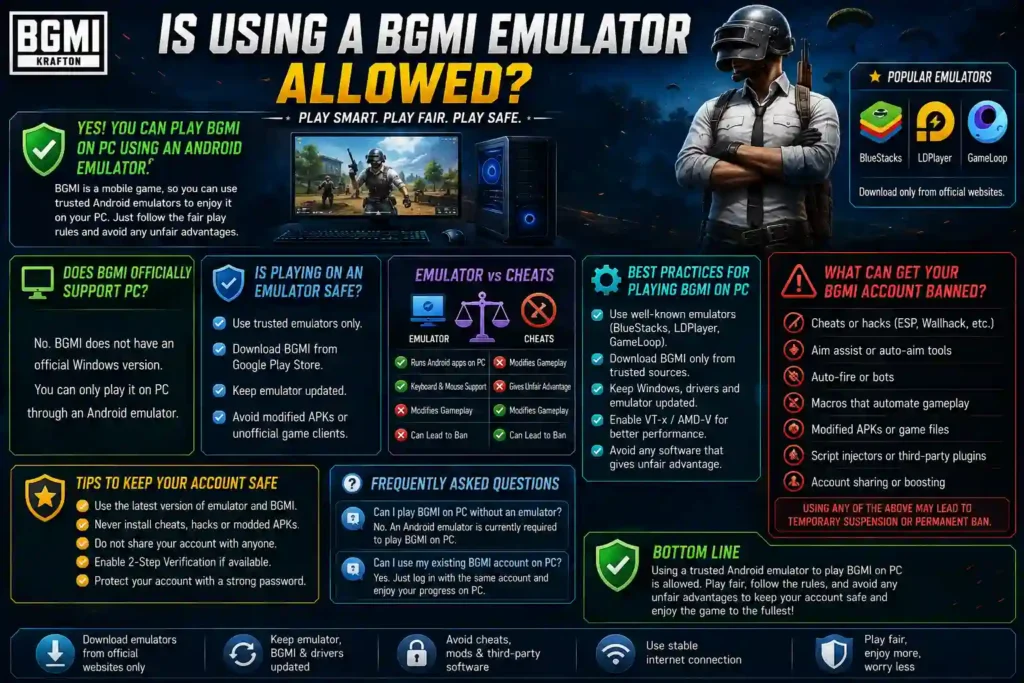
Many players wonder whether using an Android emulator to play BGMI on PC is allowed or if it could lead to an account ban. The short answer is yes, you can play BGMI using a reputable Android emulator, but you must follow BGMI’s fair-play rules and avoid any unauthorized software or modifications.
It’s important to understand the difference between using an emulator and using cheats. Playing on an emulator simply allows the Android version of BGMI to run on a Windows PC, whereas cheats, scripts, and modified game clients violate the game’s rules.
Does BGMI Officially Support PC?
No. BGMI does not have an official native Windows version. The game is developed for Android and iOS devices, so players who want to use a PC must run the mobile version through an Android emulator.
Popular emulators include:
- BlueStacks
- LDPlayer
- GameLoop
These emulators provide keyboard and mouse support, customizable controls, and better performance on compatible PCs.
Is Playing BGMI on an Emulator Safe?
Using a trusted Android emulator is generally considered safe. However, your account’s safety depends on how you play, not just which emulator you use.
To minimize risk:
- Download emulators from their official websites.
- Install BGMI from the Google Play Store whenever possible.
- Keep your emulator updated.
- Avoid installing modified APKs or unofficial game clients.
What Can Get Your BGMI Account Banned?
While an emulator itself is not the same as cheating, using unauthorized tools or unfair advantages can result in penalties.
Avoid the following:
- Cheats or hacks
- ESP or wallhack software
- Aim assist tools
- Auto-fire or auto-aim programs
- Macros that automate gameplay
- Modified APK files
- Script injectors
- Third-party plugins that alter gameplay
- Account sharing for boosting or unfair progression
Using any of these may lead to temporary suspensions or permanent account bans.
Best Practices for Playing BGMI on PC
Follow these recommendations for a smooth and secure gaming experience:
- Use a well-known emulator such as BlueStacks, LDPlayer, or GameLoop.
- Download BGMI only from trusted sources.
- Keep Windows, graphics drivers, and your emulator updated.
- Enable Hardware Virtualization (VT-x/AMD-V) for better performance.
- Avoid any software that claims to unlock unlimited UC, increase damage, or provide unfair gameplay advantages.
Emulator vs Cheats
| Feature | Emulator | Cheats / Hacks |
|---|---|---|
| Runs Android apps on PC | ✅ Yes | ❌ No |
| Keyboard & Mouse Support | ✅ Yes | ❌ No |
| Modifies Gameplay | ❌ No | ✅ Yes |
| Gives Unfair Advantage | ❌ No | ✅ Yes |
| Can Lead to Account Penalties | Not by itself | ✅ Yes |
Tips to Keep Your Account Safe
Before every gaming session:
- ✅ Use the latest version of your emulator.
- ✅ Update BGMI to the latest version.
- ✅ Keep your graphics drivers updated.
- ✅ Avoid third-party cheat software.
- ✅ Never install modified APKs.
- ✅ Protect your account with a strong password and linked recovery options.
BGMI PC vs Mobile
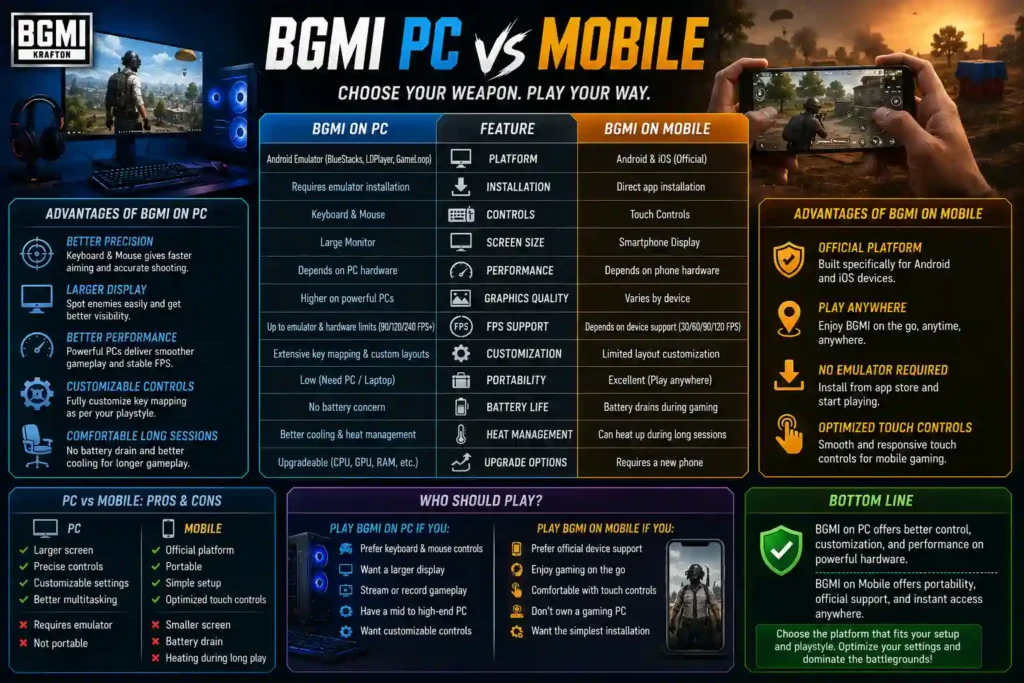
Many players wonder whether it’s better to play BGMI on a PC or stick with a mobile device. While both platforms offer the same core gameplay, the overall experience differs significantly in terms of controls, performance, portability, and hardware requirements.
Playing BGMI on a PC provides a larger display, keyboard and mouse controls, and the potential for smoother gameplay on capable hardware. On the other hand, mobile devices offer portability, official platform support, and touchscreen controls designed specifically for BGMI.
The best choice depends on your gaming style, budget, and where you prefer to play.
BGMI PC vs Mobile Comparison
| Feature | BGMI on PC | BGMI on Mobile |
|---|---|---|
| Official Platform | Android Emulator | Android & iOS |
| Installation | Requires an Android Emulator | Direct App Installation |
| Controls | Keyboard & Mouse | Touch Controls |
| Screen Size | Large Monitor | Smartphone Display |
| Performance | Depends on PC Hardware | Depends on Phone Hardware |
| Graphics Quality | Higher on Powerful PCs | Varies by Device |
| FPS Support | Up to Emulator & Hardware Limits | Depends on Device Support |
| Customization | Extensive Key Mapping | Limited Layout Customization |
| Portability | Low | Excellent |
| Battery Life | No Battery Concern | Battery Drains During Gaming |
| Cooling | Better Heat Management | Can Heat Up During Long Sessions |
| Upgrade Options | Upgrade Individual Components | Requires a New Phone |
Advantages of Playing BGMI on PC
Using an Android emulator allows players to enjoy several benefits that are difficult to achieve on mobile devices.
Better Precision
A keyboard and mouse provide faster aiming, more accurate shooting, and quicker reactions compared to touchscreen controls.
Larger Display
Playing on a larger monitor makes it easier to spot enemies, monitor the minimap, and track movement during intense battles.
Better Performance
Gaming PCs equipped with modern processors and dedicated graphics cards can deliver smoother gameplay with stable frame rates.
Customizable Controls
Most emulators let you fully customize key mappings, allowing you to create a control layout that matches your playstyle.
Comfortable Long Gaming Sessions
Since a PC doesn’t rely on battery power, you can play for extended periods without worrying about charging or device overheating.
Advantages of Playing BGMI on Mobile
Despite the benefits of PC gaming, mobile remains the official platform for BGMI and offers its own advantages.
Official Platform
BGMI is developed specifically for Android and iOS, ensuring the best compatibility and native touch controls.
Play Anywhere
A smartphone lets you enjoy BGMI wherever you are, whether at home, traveling, or with friends.
No Emulator Required
Simply install the game from the app store and start playing without additional software.
Optimized Touch Controls
Modern smartphones offer responsive touch controls with customizable layouts for different playstyles.
Which Platform Offers Better Performance?
Performance depends entirely on your hardware.
Choose PC If You Have:
- A gaming desktop or laptop
- At least 16 GB RAM
- SSD storage
- A dedicated graphics card
- A stable internet connection
Choose Mobile If You Have:
- A flagship or gaming smartphone
- 90 FPS or 120 FPS device support
- Reliable battery life
- Good cooling performance
Who Should Play BGMI on PC?
BGMI on PC is ideal for players who:
- Prefer keyboard and mouse controls.
- Want a larger display for improved visibility.
- Stream or record gameplay.
- Have a mid-range or high-end gaming PC.
- Want customizable controls and emulator features.
Who Should Play BGMI on Mobile?
Mobile is the better choice for players who:
- Prefer official device support.
- Enjoy gaming on the go.
- Are comfortable with touchscreen controls.
- Don’t own a gaming PC.
- Want the simplest installation process.
PC vs Mobile: Pros & Cons
| Platform | Pros | Cons |
|---|---|---|
| PC | Larger screen, precise controls, customizable settings, better multitasking | Requires an emulator, not portable |
| Mobile | Official platform, portable, simple setup, optimized touch controls | Smaller screen, battery drain, device heating during long sessions |
Which One Should You Choose?
If your priority is competitive gameplay, precision, and a larger display, playing BGMI on a PC with a trusted Android emulator can provide a more comfortable experience.
If you value portability, official support, and the ability to play anywhere, a smartphone remains the most convenient option.
Ultimately, both platforms deliver the same battle royale experience—the best choice depends on your hardware, preferred control method, and gaming habits.
Stay up to date with the latest game patches, tournament news, esports announcements, and gameplay features by visiting our Esports Updates section.
Best PCs & Laptops for BGMI
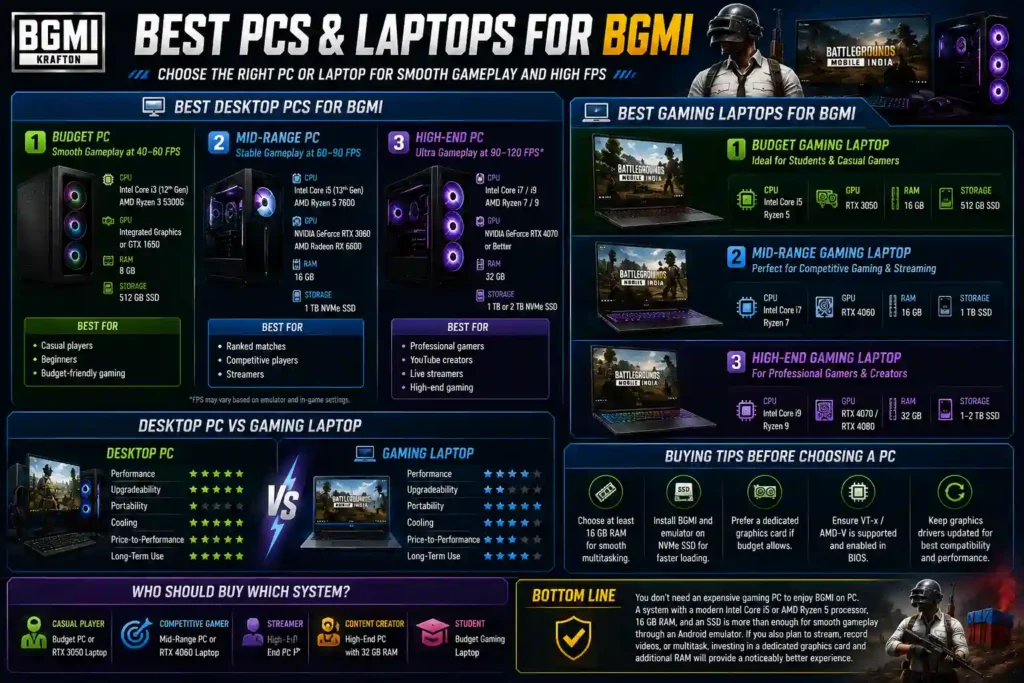
Choosing the right PC or laptop is just as important as selecting the best emulator. While BGMI is a mobile game, running it through an Android emulator requires a capable processor, sufficient RAM, and, ideally, an SSD for faster loading times.
Whether you’re a casual player, competitive gamer, or content creator, the recommendations below will help you choose hardware that delivers smooth gameplay and stable FPS.
Best Budget PC for BGMI
If you’re looking for an affordable setup, a budget PC can comfortably run BGMI at 60 FPS with optimized emulator settings.
Recommended Specifications
| Component | Recommendation |
|---|---|
| Processor | Intel Core i3 (12th Gen) / AMD Ryzen 3 5300G |
| Graphics | Integrated Graphics or GTX 1650 |
| RAM | 8 GB |
| Storage | 512 GB SSD |
| Expected Performance | Smooth Gameplay at 40–60 FPS |
Best For
- Casual players
- Beginners
- Budget-friendly gaming
Best Mid-Range PC for BGMI
A mid-range gaming PC offers excellent performance for competitive players, with smoother gameplay and higher frame rates.
Recommended Specifications
| Component | Recommendation |
|---|---|
| Processor | Intel Core i5 (13th Gen) / AMD Ryzen 5 7600 |
| Graphics | NVIDIA GeForce RTX 3060 / AMD Radeon RX 6600 |
| RAM | 16 GB |
| Storage | 1 TB NVMe SSD |
| Expected Performance | Stable 60–90 FPS |
Best For
- Ranked matches
- Competitive players
- Streamers
Best High-End Gaming PC for BGMI
For players who want maximum performance, faster loading times, and multitasking capabilities, a high-end gaming PC is the ideal choice.
Recommended Specifications
| Component | Recommendation |
|---|---|
| Processor | Intel Core i7 / AMD Ryzen 7 |
| Graphics | NVIDIA GeForce RTX 4070 or Better |
| RAM | 32 GB |
| Storage | 1 TB or 2 TB NVMe SSD |
| Expected Performance | 90–120 FPS* |
*Actual frame rates depend on emulator support and the frame-rate options available in BGMI.
Best For
- Professional gamers
- YouTube creators
- Live streamers
- High-end gaming
Best Gaming Laptops for BGMI
Gaming laptops offer excellent portability while delivering enough power to run BGMI smoothly.
Budget Gaming Laptop
| Component | Recommendation |
|---|---|
| CPU | Intel Core i5 / Ryzen 5 |
| GPU | RTX 3050 |
| RAM | 16 GB |
| Storage | 512 GB SSD |
Ideal For: Students and casual gamers.
Mid-Range Gaming Laptop
| Component | Recommendation |
|---|---|
| CPU | Intel Core i7 / Ryzen 7 |
| GPU | RTX 4060 |
| RAM | 16 GB |
| Storage | 1 TB SSD |
Ideal For: Competitive gaming and streaming.
High-End Gaming Laptop
| Component | Recommendation |
|---|---|
| CPU | Intel Core i9 / Ryzen 9 |
| GPU | RTX 4070 / RTX 4080 |
| RAM | 32 GB |
| Storage | 1–2 TB SSD |
Ideal For: Professional gamers, creators, and users who want maximum performance.
Desktop PC vs Gaming Laptop
| Feature | Desktop PC | Gaming Laptop |
|---|---|---|
| Performance | ⭐⭐⭐⭐⭐ | ⭐⭐⭐⭐☆ |
| Upgradeability | Excellent | Limited |
| Portability | No | Yes |
| Cooling | Better | Good |
| Price-to-Performance | Better Value | More Expensive |
| Long-Term Use | Excellent | Good |
Buying Tips Before Choosing a PC
Before purchasing a new system, consider the following:
- Choose at least 16 GB RAM for smoother multitasking.
- Install BGMI and your emulator on an NVMe SSD.
- Prefer a dedicated graphics card if your budget allows.
- Ensure Hardware Virtualization (VT-x/AMD-V) is supported and enabled.
- Keep graphics drivers updated for the best compatibility.
Who Should Buy Which System?
| User Type | Recommended System |
|---|---|
| Casual Player | Budget PC or RTX 3050 Laptop |
| Competitive Gamer | Mid-Range PC or RTX 4060 Laptop |
| Streamer | High-End PC |
| Content Creator | High-End PC with 32 GB RAM |
| Student | Budget Gaming Laptop |
FAQ
Can I play BGMI on PC?
Yes. You can play BGMI on a Windows PC or laptop using an Android emulator such as BlueStacks, LDPlayer, or GameLoop.
Is BGMI officially available for PC?
No. KRAFTON has not released an official native Windows version of BGMI. An Android emulator is currently required to play it on a PC.
Which emulator is best for BGMI?
BlueStacks is a great all-around choice, while LDPlayer is often preferred for better performance on low- and mid-range PCs. GameLoop is another option for players who prefer a gaming-focused emulator.
Can I play BGMI on a low-end PC?
Yes. A PC with an Intel Core i3 or AMD Ryzen 3 processor, 8 GB RAM, and an SSD can run BGMI smoothly with optimized emulator settings.
What are the minimum system requirements for BGMI on PC?
You’ll typically need Windows 10/11 (64-bit), an Intel Core i3 or equivalent processor, 8 GB RAM, DirectX 11 support, and at least 10 GB of free storage.
Is using a BGMI emulator allowed?
Using a trusted Android emulator is generally permitted, but using cheats, hacks, modified APKs, or automation tools can lead to account penalties.
Can I use my existing BGMI account on PC?
Yes. Simply sign in with the same account you use on your mobile device to access your existing progress, inventory, and achievements.
How can I improve FPS in BGMI on PC?
Enable Hardware Virtualization (VT-x/AMD-V), allocate more CPU cores and RAM to your emulator, use Smooth graphics settings, update your graphics drivers, and close unnecessary background applications.
Why is BGMI lagging on my PC?
Lag is usually caused by insufficient system resources, outdated drivers, disabled virtualization, high graphics settings, or too many background applications.
Can I play BGMI on a laptop?
Yes. Most modern Windows laptops that meet the minimum system requirements can run BGMI through an Android emulator.
Which graphics settings are best for BGMI PC?
For the best competitive performance, use Smooth graphics with the highest available frame rate, disable shadows, and turn off anti-aliasing.
Can I play BGMI on PC without an emulator?
No. Since there is no official PC version of BGMI, an Android emulator is currently required.
Does BGMI support keyboard and mouse?
Yes. Android emulators provide customizable keyboard and mouse controls, allowing you to play BGMI comfortably on a PC.
Is BGMI free to play on PC?
Yes. BGMI is free to download and play through an Android emulator, although optional in-game purchases are available.
Which is better: BGMI on PC or Mobile?
It depends on your preference. PC offers a larger screen, keyboard and mouse controls, and better customization, while mobile provides official support and greater portability.
Although BGMI does not have an official native PC version, you can still enjoy the game on a Windows computer using a trusted Android emulator such as BlueStacks, LDPlayer, or GameLoop. With the right emulator and optimized settings, BGMI delivers a smooth gaming experience, larger visuals, and precise keyboard-and-mouse controls.
For the best results, ensure your PC meets the recommended system requirements, enable Hardware Virtualization (VT-x/AMD-V), allocate sufficient CPU cores and RAM to your emulator, and use Smooth graphics with the highest available frame rate. These optimizations can significantly improve FPS, reduce input lag, and enhance overall gameplay.
If you’re a casual player, even a budget PC with 8 GB RAM can provide a good experience. Competitive players, streamers, and content creators will benefit from a mid-range or high-end gaming PC equipped with 16 GB or more RAM, an SSD, and a dedicated graphics card.
Most importantly, always use official emulator downloads, keep BGMI and your emulator updated, and avoid cheats, modified APKs, or unauthorized software to protect your account and enjoy fair gameplay.
Whether you choose to play on PC or mobile, the key to success is optimizing your settings, practicing consistently, and staying updated with the latest BGMI updates. With the right setup, you can enjoy smoother performance, better controls, and a more immersive battle royale experience.